The Brown Law Firm — Jerome A. Brown, Board Certified Attorney in Consumer Bankruptcy Law and Business Bankruptcy Law by the Texas Board of Legal Specialization — 40+ Years Legal Experience
How to leave a Google review anonymously
You can share your experience with our firm without your full name appearing next to your review. Google lets you post under a display name of your choice instead of your real one. Here is how to set it up.
Setting up your alias
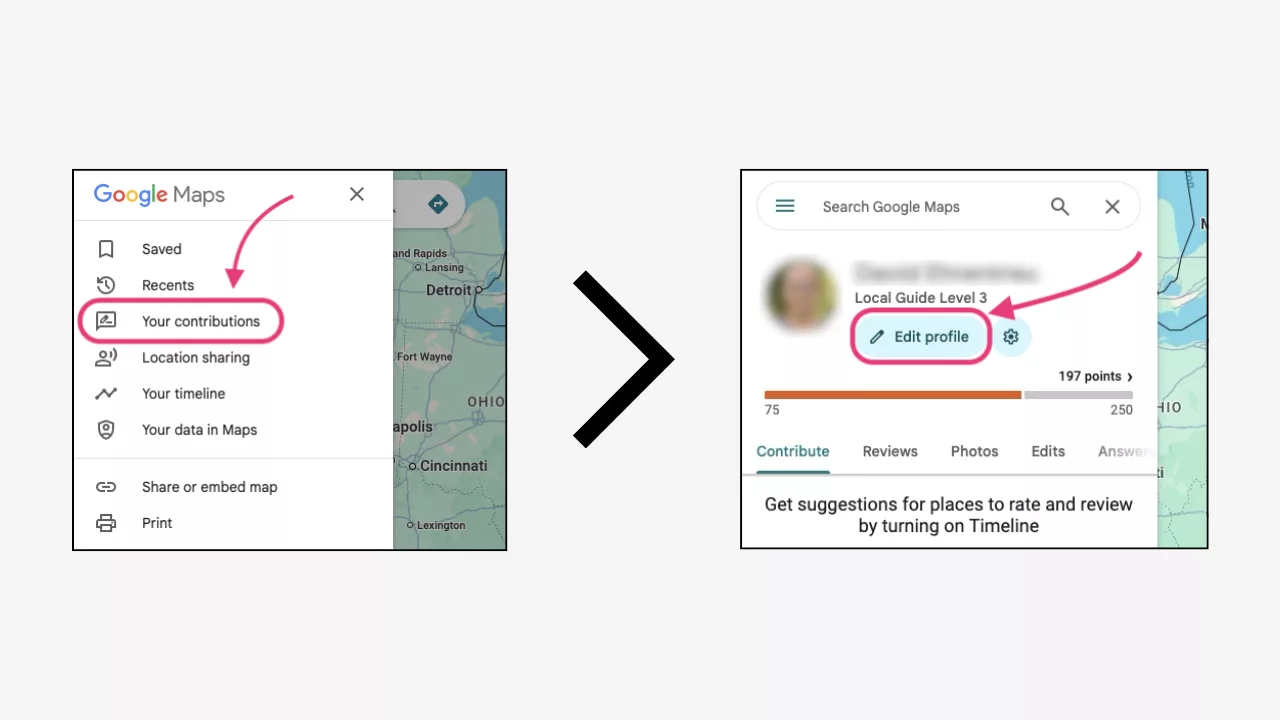
- Sign in at maps.google.com or open the Google Maps app with your Google account.
- Open the menu, choose Your contributions, then select Edit profile.
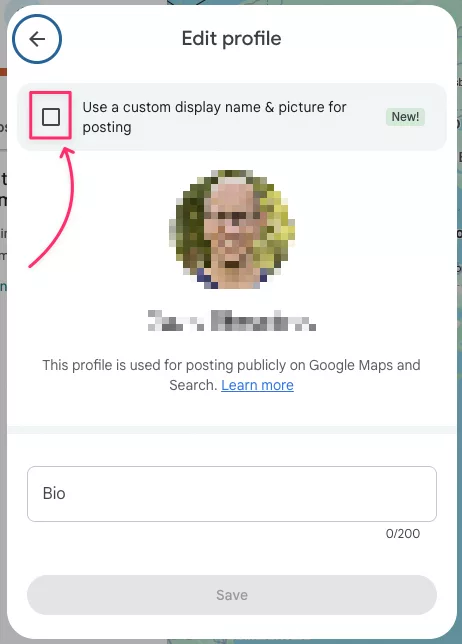
- Check the box labeled "Use a custom display name & picture for posting."
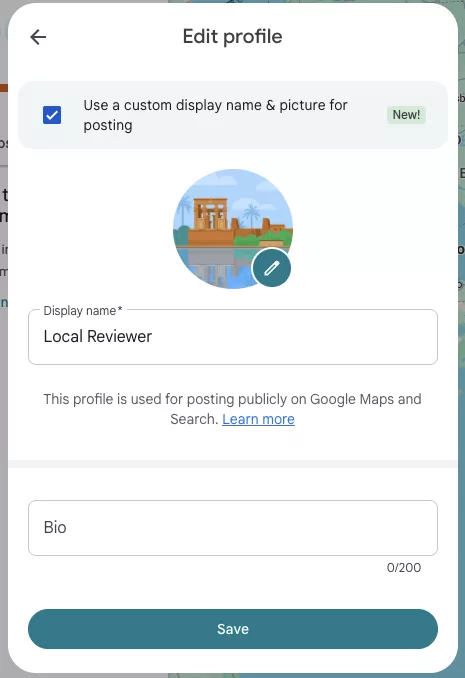
- Enter the name you want shown. A first name only, or a generic handle like Local Client, keeps you unrecognizable. You can set a different picture too.
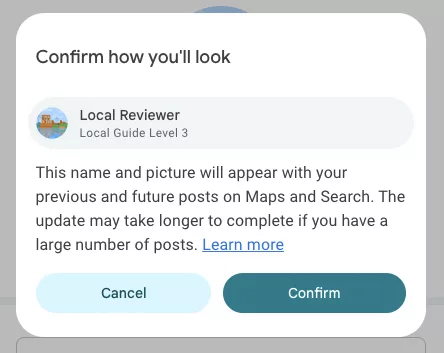
- Confirm the change. From this point on, new reviews show your chosen name rather than your real one.
- Open our Google listing, click Write a review, add your rating and a few honest sentences, and post.
What this does and does not do
Your chosen name is what our office and the public see. Google still keeps your account details on its own systems, so this hides your identity from others, not from Google itself. Reviews you posted in the past keep their original name. Only new reviews use the alias, and you can switch back at any time.
If you do not see the option
If you do not see the custom name option, update the Google Maps app and try again. Google is still rolling this feature out, so it may not be available on every account yet. As an alternative, you can create a separate Google account under a different name and review from that.